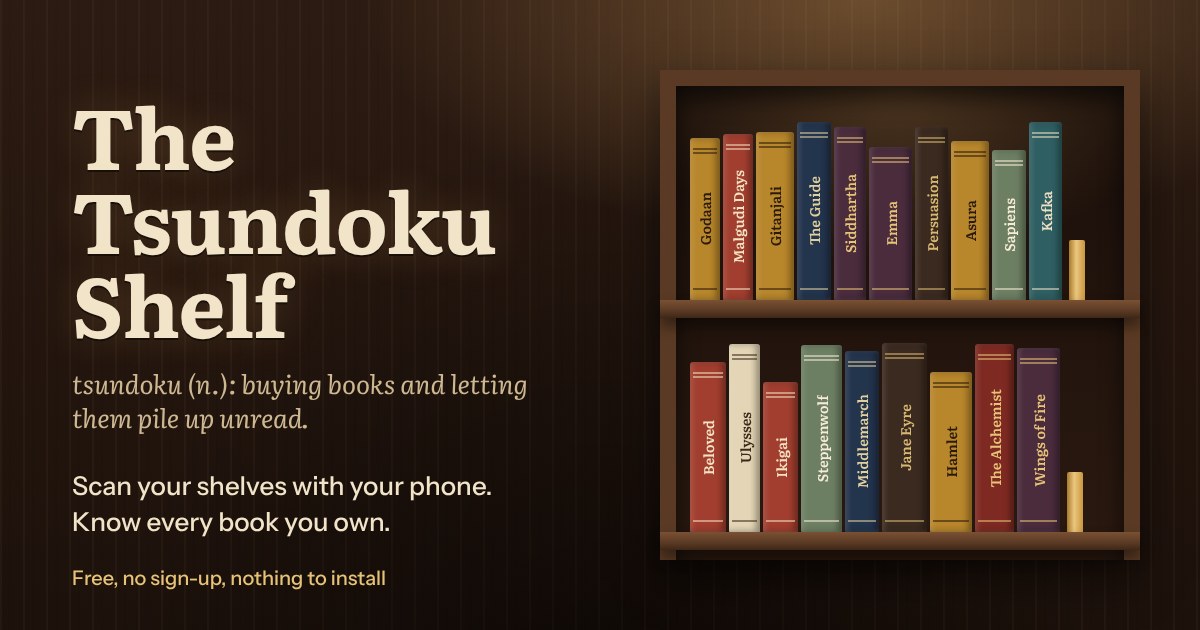
tsundoku (n.): buying books and letting them pile up unread. We all do it. Now you can at least know what’s in the pile.
Scan the books on your shelves with your phone and get a neat list of everything you own, ready to open in Excel. No sign-up, nothing to install.
Works best on your phone. Open it in Chrome or Safari and allow the camera.
The problem
A lot of us have shelves of books collected over years, and no record of what’s on them. You buy a book you already own. You forget who borrowed what. You know you have a book somewhere but can’t say which shelf it’s on.
Cataloguing by hand means typing out every title and author. Most people give up somewhere around the second shelf.
Why I made it
I’ve been wanting to organise my own personal library for a long time, but the thought of entering all the data by hand was always a pain for my ADHD brain. While working at Pagdandi, an independent bookstore in Pune, I realised that everything about a book can be found through its ISBN, and that motivated me to quickly build this for myself.
Once it worked for me, I thought: why not share it with others who might have the same problem?
📚 If you’re in Pune, visit Pagdandi Bookstore & Coffee in Baner, the lovely independent bookstore and café where this idea was born. Browse the shelves, grab a chai, and stay a while.
How it works

STEP 1
Open it and tap Scan books
Open The Tsundoku Shelf on your phone and tap Scan books. Allow the camera when your phone asks. Tip: add it to your home screen so it opens like an app.

STEP 2
Point at the barcode
Hold the barcode on the back of the book inside the frame. Your phone gives a little buzz and the book takes its place on your shelf, with the title and author filled in. Keep going, one book after another, then tap Done.

STEP 3
Fix anything it missed
A few books can’t be looked up, so they show as Unknown title. Tap one to type in the title and author. Have two copies of a book? Scan it again, or use the − and + buttons.

STEP 4
Download your library
When you’re done, tap Download Excel (or CSV). You get your whole library as a file you can open in Excel or Google Sheets.

STEP 5
See your library as a bookshelf
Tap Make a shelf picture and your books stand on a lamplit wooden shelf, one spine for every book. Underneath: how many books and pages you own, your oldest and longest book, and the author you’ve collected most.
Add your name, save the picture and share it. It’s sized for an Instagram story.
Your list stays on your own phone. There’s no account and no server storing your books, so download the file once you’re done.
What’s in your Excel file
Each book gets one row. To keep things tidy, your file starts with just the basics, which almost every book has:
- ISBN, title and author
- Number of copies you own
- Publisher, year published and number of pages
Want more? Tap Add more details to your file under your list and tick what you’d like: edition, binding (paperback or hardcover), language, list price, dimensions, Dewey decimal number (the number libraries shelve by), subjects, synopsis, overview, an excerpt, a link to the cover image, the 10-digit ISBN, other editions’ ISBNs, and the date you scanned it.
These extras aren’t available for every book, especially older or smaller local editions, so some rows may have them empty. The app remembers your choice for every download after that.
How it’s built
- One web page, no app store. It runs in the phone’s browser and can be added to the home screen like an app.
- Barcode reading happens right on your phone, so the camera feed never leaves it.
- The Excel file is made on the phone too.
Help keep it free
The Tsundoku Shelf is free, with no ads and no sign-up, and I’d like to keep it that way. Looking up book details and keeping the app running costs money every month, though. If it saved you hours of typing, you can chip in whatever feels right. It all goes into running the app, so it stays free for the next person cataloguing their shelves.
Any amount, paid with UPI. On your phone, the button opens your UPI app (GPay, PhonePe, Paytm and others). On a computer, scan this code with your phone instead:

Or pay to this UPI ID: ghiyaronit@okhdfcbank (Ronit Ghiya). Thank you!
Get in touch
If you use it on your own shelves, I’d love to hear how it went. Got a feature idea or something that could work better? Just reach out.